Clock ins/outs

- Is it mandatory to use geolocation for clocking in/out?
- Is an internet connection required to clock in/out?
- How can employees clock in/out?
- Can I modify users' clock ins/outs?
- How do I manage clock ins/outs requests?
- When are clock ins/outs requests generated?
- Can employees validate their clock ins/outs?
- How can I assign a clock in/out?
- How can I assign a clock in/out from the app?
- Where can I see the clock in/out incidents?
- Which clock ins/out reports can I download?
- Can I see employee clock ins/outs?
- Can I find out who is working in real time?
- How can I create and configure different types of clock ins/outs?
- How can I see and edit the types of clock ins/outs in my company?
- Can I assign clock ins/outs and breaks within a date range?
- How to quickly assign a clock in/out with just one button?
- Can I assign or request a clock in/out if one is already open?
- Can I manage all of the clock in/out requests for the same employee with a single action?
- How do I enable my employees to request a clock in/out even if the "Clock ins/outs" section is hidden?
- How can I tell which employees are working remotely?
- Does offline clock in/out also work on the mobile app?
How can I create and configure different types of clock ins/outs?
As an admin you can now create multiple clock in/out types that suit your company’s needs. Likewise, your employees will be able to use all the clock in/out types that you enable.
You need to follow these steps to proceed with creating clock-in/out type:
Configuration >> Schedules >> Clock in/out types >> Add clock in/out type
Here you can add the following information about your clock in/out types:
- Name (note that there cannot be two clock in/out types with the same name).
- Icon (these can be repeated).
- Remote work selector (by activating this option, this clock in/out type will appear in remote work reports and graphs to improve statistics).

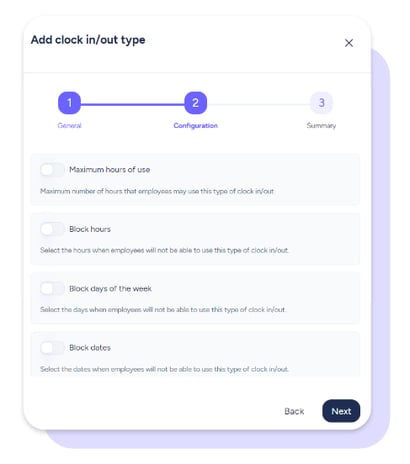
You will be able to set up the clock in/out types under the following specifications:
-
Maximum hours of use: Set the maximum number of hours that employees can use this clock in/out type. The limit can be annual, monthly, weekly or daily.
Keep in mind that it’s not possible to set more than 8,760 hours/year, 744 hours/month, 168 hours/week or 24 hours/day. Also, only whole numbers are allowed; decimals, letters and symbols are not allowed. - Block hours: Select at what times employees cannot use this clock in/out type. Note that it is not possible to save two identical ranges. Also, you cannot create ranges that change from one day to the next.
- Block days of the week: Select which days of the week this clock in/out type cannot be used.
- Block dates: Select the dates on which this clock in/out type cannot be used. Note that it is not possible to save two identical ranges, and the start date cannot be the same as or prior to the end date.
You can also configure what happens when your clock in/out limits are exceeded:
- Automatically clock out employees so that a regular clock in is created.
- Automatically clock out employees and they will be notified in their dashboard and app.
- Keep employees clocked in despite restrictions. Employees will be clocked out once they manually do so.
Additionally, you can create unpaid clock ins/outs types to categorise work time that does not correspond to compensation.
You need to go to:
Configuration >> Schedules >> Clock ins/outs types >> Add clock in/out type
When creating a clock in/out type, you will be able to indicate whether it is paid or not.
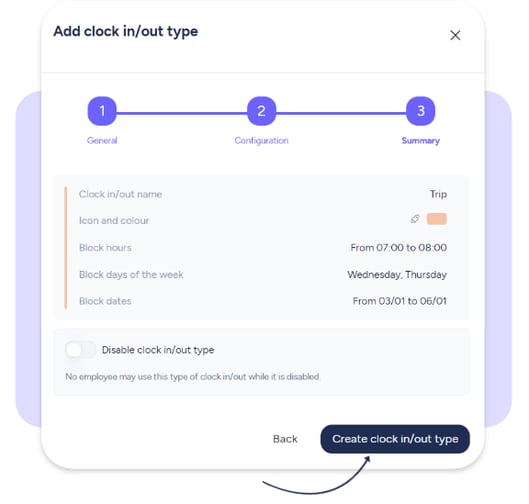
To finish with the creation of clock in/out types, you may see a summary of the settings you chose.
You can also disable this clock in/out type. This means that all assigned employees will not see this clock in/out type when they use the tool, but it will appear in past records and history.
To finish, click on Create clock in/out type.